Troubleshooting Tailscale Connection Issues to Porter-Managed Databases
Last updated: September 19, 2025
If you're experiencing difficulties connecting to your Porter-managed database via Tailscale, follow these troubleshooting steps to resolve the issue:
1. Verify Your Authentication Key
Ensure that your Tailscale authentication key is up-to-date. If you've recently regenerated the key, make sure to update it in your Porter configuration.
2. Check DNS Configuration
DNS misconfiguration is a common cause of Tailscale connection problems. Follow these steps to troubleshoot:
Check your local DNS configuration:
Run
cat /etc/resolv.confwith Tailscale on and offCompare the results to see if there are any differences.
Test with exit node enabled and disabled to see if it affects the connection (Note: Exit node must be enabled for Porter CLI commands when public cluster access is closed)
3. Override Local DNS Settings
If your local DNS results have 192.168.0.0/16 address, consider overriding Local DNS in the Tailscale console:
Log in to your Tailscale admin console
Navigate to the DNS settings page
Enable "Override local DNS"
Disable "Magic DNS"
Re-enable "Magic DNS"
On your local machine, turn Tailscale off and on again to apply the changes
4. Add Public DNS Servers
To ensure reliable DNS resolution, consider adding public DNS servers to your Tailnet:
Cloudflare DNS (1.1.1.1)
Google Public DNS (8.8.8.8)
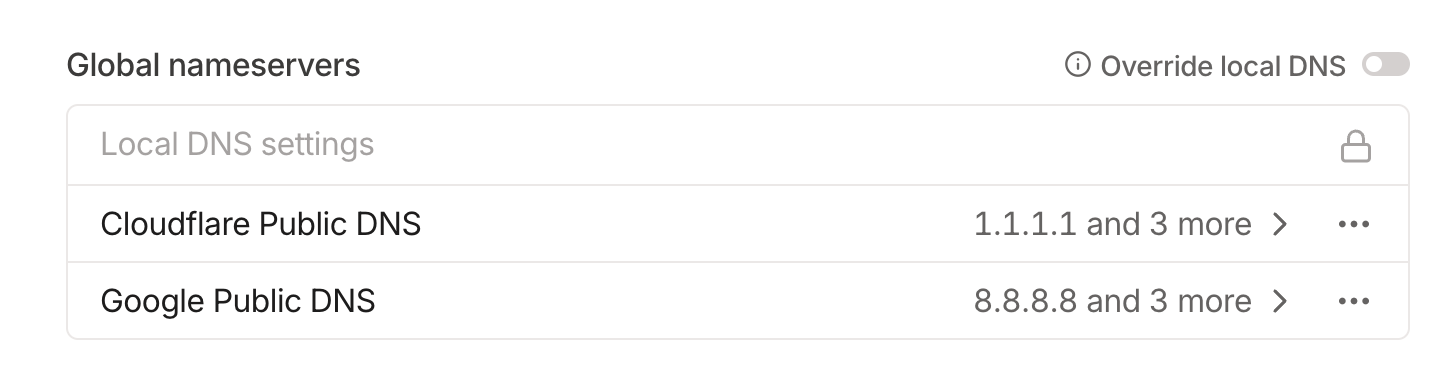
You can add these in the same DNS settings page of your Tailscale admin console.
When Tailscale Integration is Required
If you've implemented SOC 2 compliance controls or closed your cluster's public access, Tailscale integration becomes mandatory for connecting to Porter-managed databases. In this configuration:
The
porter datastore connectcommand will timeout without TailscaleYou must activate Tailscale with the exit node enabled to run Porter CLI commands
Standard database connections that previously worked with public access will require Tailscale
Important: Exit node activation is critical for Porter CLI functionality when public cluster access is disabled.
Still Having Issues?
If you're still unable to connect after trying these steps, contact Porter support. We may need to investigate your specific Tailscale configuration to resolve the issue.